
Configuring LDAP Enrichment Source consists of two steps:
Go to Settings >> Configuration >> Enrichment Sources.
Click Add.

Adding an Enrichment Source
Select LDAP.
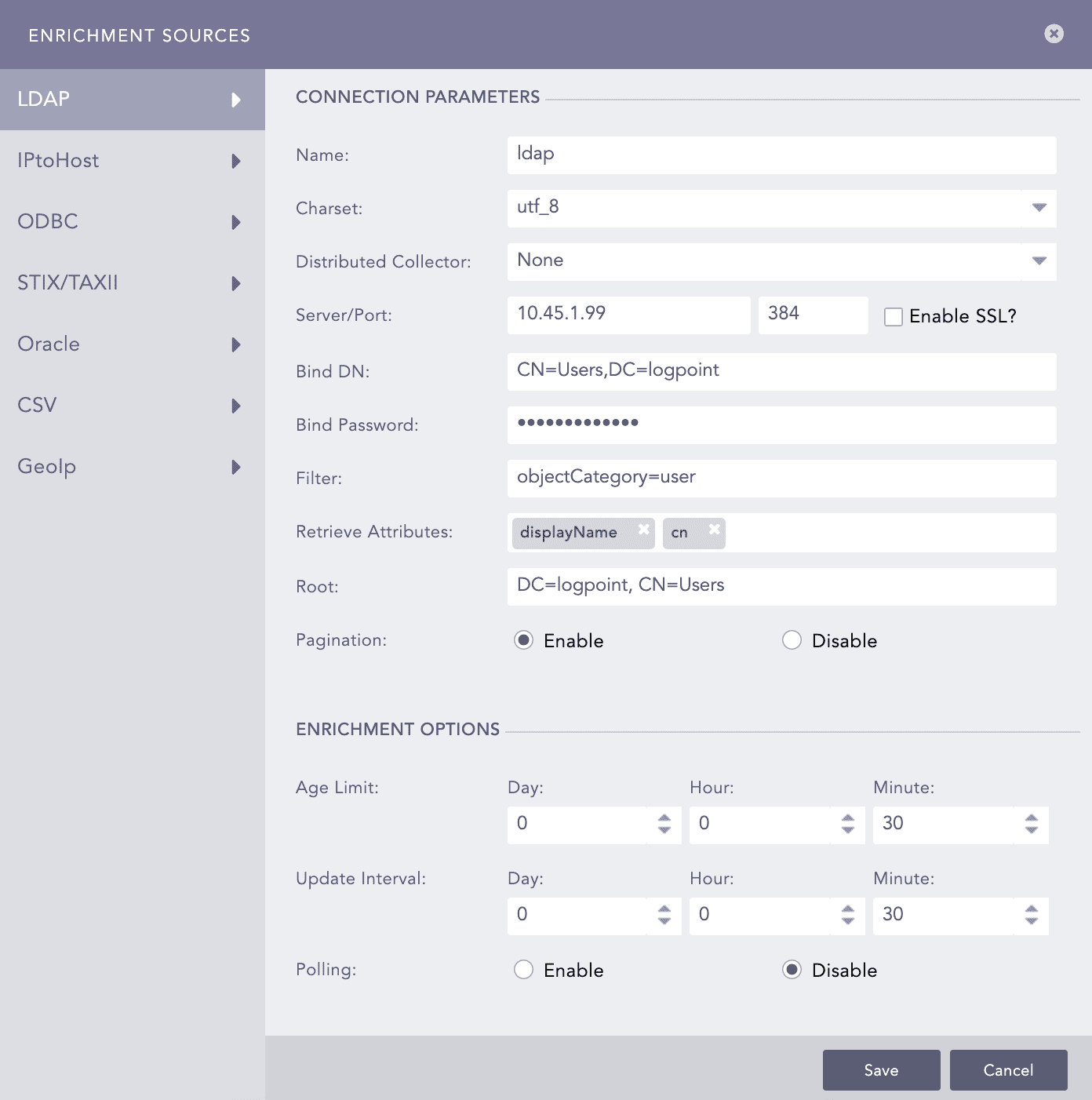
Adding LDAP as an Enrichment Source
In CONNECTION PARAMETERS:
Enter a Name.
Select Charset.
In Distributed Collector, select the Logpoint Collector where you want LDAP enrichment.
Enter the Server IP and the Port number of the LDAP server.
Select Enable SSL? to connect using SSL.
In Bind DN, enter the unique identifier for your LDAP user or application. Make sure to enter the appropriate Distinguished Name that corresponds to your LDAP access.
In Bind Password, enter the password associated with the Bind DN. This password is essential for authentication and connecting with the LDAP directory.
Enter a Filter to refine the search results.
In Retrieve Attributes, enter the attributes to be extracted.
Enter the Root node from which data is extracted.
Enable Pagination to retrieve data one page at a time from the server. If disabled, LDAP Enrichment Source retrieves all the data at once.
Use ENRICHMENT OPTIONS to add or configure parameters that control enrichment frequency. You also need to decide that when new enrichment data is fetched, whether it is added to existing Logpoint based data or replaces existing data.
Select an Age Limit, the retention period for data. For example, if you set it as 5 Hour, the fetched data is deleted after 5 hours.
Select an Update Interval, the period of time at which data is updated. For example, if you set it as 1 Hour, data from the odbc server is fetched every 1 hour.
Select Polling to enable if Logpoint should poll the LDAP server every two minutes for attribute changes. To enable polling, Retrieve Attributes requires the objectGUID or the userPrincipalName attributes.
In SOURCE FIELDS, add Fields with their relevant Type. The fields entered here must be in Retrieve Attributes.
Click Save.
After adding LDAP enrichment source, Logpoint creates a table with the name you assigned. To view the table:
Go to Settings >> Configuration >> Enrichment Sources.

Click Search ( ) icon from Actions. It will take you to the Logpoint Search. You can also view the table directly from Search using the Table query.

Searching the LDAP Enrichment Source Table with Enrichment Data
You can now add a new enrichment policy that uses the data from the enrichment source table created above. To do so, go to Adding Enrichment Policy.
In the example below, you can see ldaptable used as an Enrichment Source. If the value of name from the log matches the value of cn from the enrichment table, Logpoint enriches the log using the data from the table.
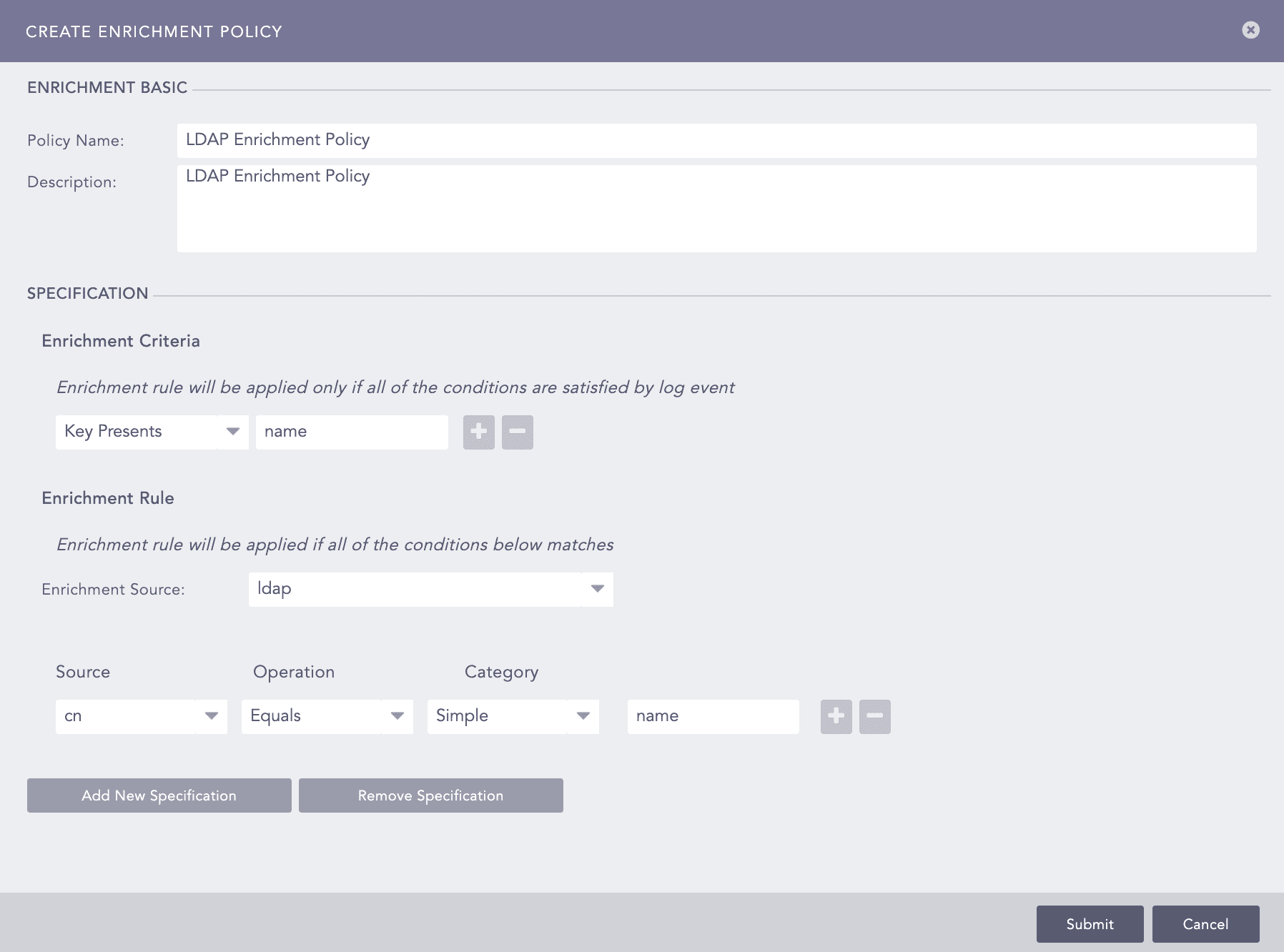
Adding Enrichment Policy using LDAP Source